Update License
The HyperCloud Legacy license can be viewed or updated either through the Glasshouse GUI or the Dashboard Console
Dashboard will reboot every few minutes unless a valid license is present. This is intended behavior!
Assumptions
- Have followed the steps in Installation and have a working HyperCloud Legacy cluster.
- Can log in to the Glasshouse GUI or the Dashboard Console.
Managing the License
Glasshouse
-
Using your web browser of choice, navigate to the URL which points to your HyperCloud Legacy installation e.g.
https://<dashboard IP>/This will open Glasshouse, the HyperCloud Legacy management GUI (Graphical User Interface). -
Enter your login credentials into the relevant text fields.
-
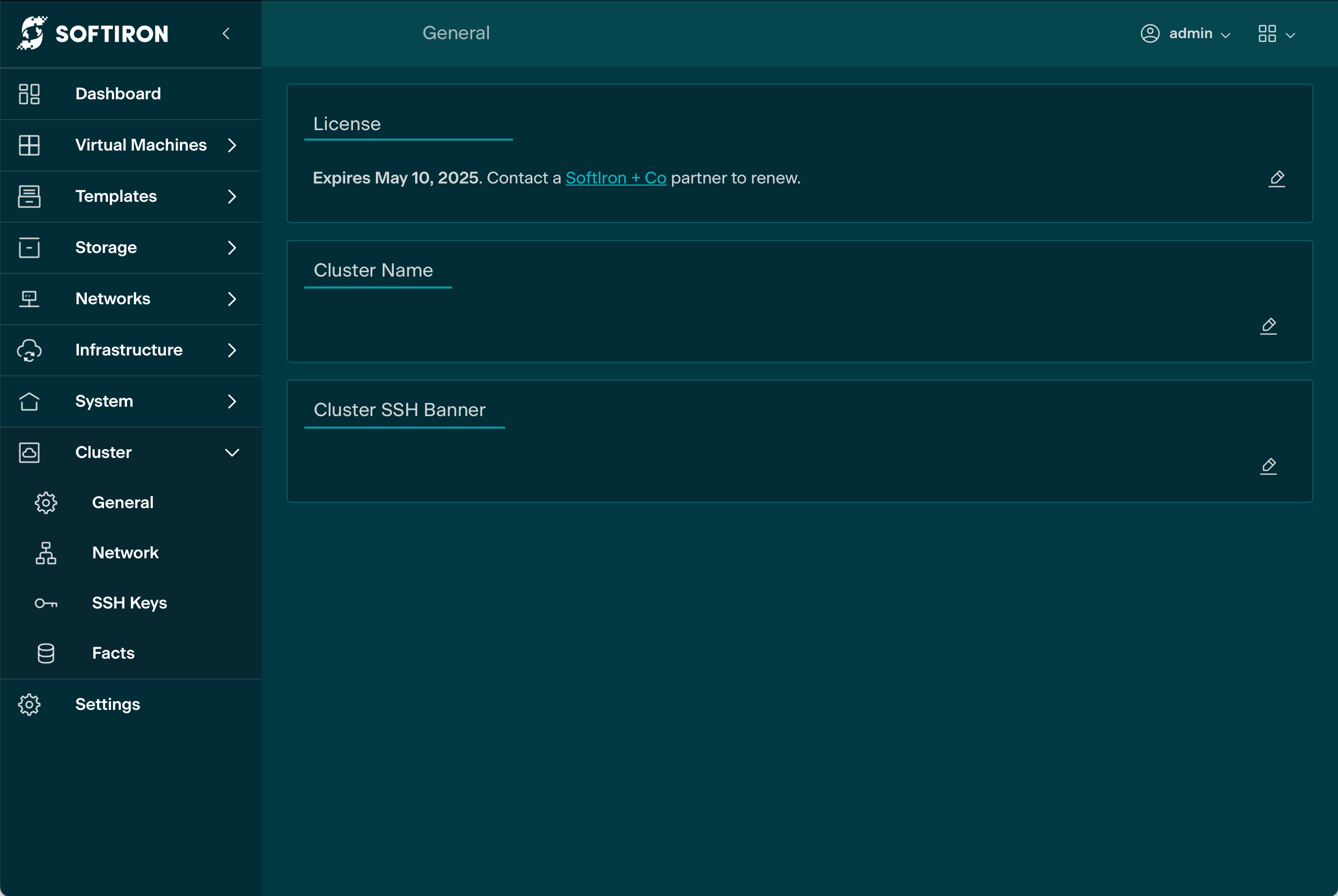
To update the HyperCloud Legacy License navigate to the Cluster/General panel in the Glasshouse GUI.
-
Select 'edit' in the HyperCloud Legacy License panel and paste the license into text box. Finally click on the 'save changes' button
Dashboard Console
The HyperCloud Legacy license can also be viewed and updated from the dashboard console using the manage-license command.
- Once an appropriate SSH key had been added the Cluster SSH Authorized Keys, login to the dashboard console:
ssh root@<dashboard IP> - use the manage-license command to view and update the license information.